

- Edit orders from Shopify
- Shopify Integration | Create, Edit & Cancel Orders
Edit orders from Shopify
Shopify Integration | Create, Edit & Cancel Orders
Overview
The following guide outlines how to create, edit, and cancel orders for clients using the Shopify Fulfillment service Integration
Considerations
You can cancel or edit orders when they’re in the following statuses in MasonHub OMS
- Open
- Substatus: Under Review
- Substatus: Under Delay
- In Progress or Partially Fulfilled with at least one fulfillment in the following
- Fulfillment status: Backordered
An order will not be able to be canceled or edited if:
- The order has reached In Process status
- Non-Admin users cannot cancel or edit orders via MasonHub OMS
Request to cancel orders are not guaranteed. Keep in mind, MasonHub maintains exceptionally fast ship SLAs so your customers get their orders quickly. Because of this, it’s critical you attempt to make any edits or cancellations as soon as possible.
| Order Field | Editable in Shopify | Editable in MasonHub |
| Cancel | Y | Y |
| Line Items or Quantity | Must cancel the order fulfillment, adjust, & re-request fulfillment, or place a new order | Y · only if in open or backordered status |
| Shipping Method | Must cancel the entire order and place a new one | Y |
| Shipping Address details | Y · Must cancel the order fulfillment, edit, & re-request fulfillment | Y |
| Value Added Service (VAS) tag | Y | Y |
| Order Type | Y | |
| Split Policy | Y | |
| Routing Policy | Y (Only editable if all items on the order are backordered) | |
| Backorder Priority | Y |
Editing Orders
Orders can be edited in MasonHub OMS by Admin users. While you will have more fields that can be updated when making changes within MasonHub OMS, not all changes will push back to Shopify. If you prefer your orders remain identical between MasonHub and Shopify, initiate all edits from Shopify.
In MasonHub
As long as at least one fulfillment on the order is in the following status, you’ll see the option to Edit from the Actions menu:
- Allocated
- Backordered
- Sent to WMS
- At Warehouse
If an edit is made after a fulfillment has dropped to the WMS, you’ll see an Update Pending status display. If for some reason the WMS rejects the update you’ll see a failure response on the fulfillment indicating the changes were rejected. A failure is very rare.
| Keep in mind: Any changes made to an order will only apply to fulfillments in editable statuses. No changes will be made to fulfillments that have already been waved and progressed beyond the At Warehouse status. |

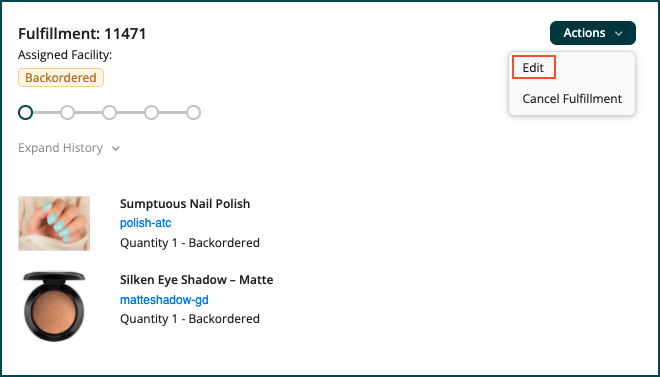
On the Order level, click Actions > Edit.

This will bring you to the order edit form where you can make the necessary changes.
Editing Line Items
Line item adjustments can be made directly in MasonHub’s OMS using the Edit button on the fulfillment level. This button is available on any fulfillment in Allocated or Backordered status.
| Note: If the order was manually created in MasonHub’s OMS, new line items can be added and / or quantities can be increased, as well as removed and / or reduced. If the order was created via an API integration (e.g., Shopify), line items can only be reduced and / or removed. |

In Shopify
Click Request cancellation on the fulfillment order in Shopify. This will submit a request to MasonHub, which will automatically be accepted as long as the fulfillment has not been waved.
The fulfillment must be canceled first before editing, even if only editing the customer’s shipping address.
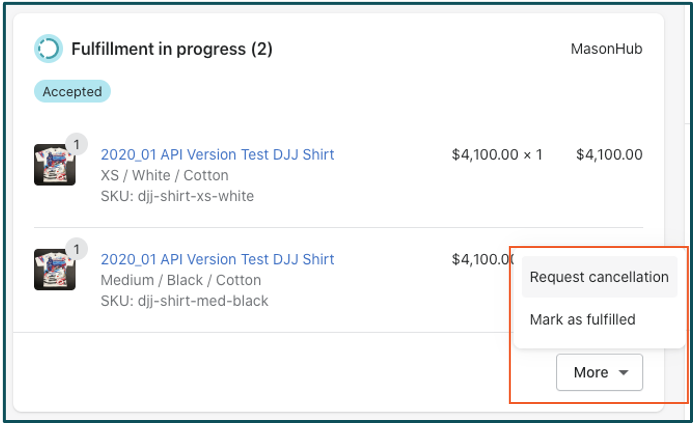
Once the cancellation request is successfully accepted in MasonHub’s OMS, the fulfillment order moves to an Unfulfilled status in Shopify, and you can make your updates.

| If you get a message of Cancelation Rejected with the note “MasonHub declined the request for cancellation.” then your order has already been waved and it’s too late for you to cancel the order. Your order will ship out. |
Scroll to the top of the order in Shopify and click Edit.

| Remember: · If you’re removing an item, uncheck “Restock 1 item”; it will be checked by default. If you do not uncheck it, you will inflate your inventory counts in Shopify and could potentially oversell the item. · If you’re fully cancelling the order, MasonHub does not tell Shopify to issue refunds upon order cancellation. You will need to manually refund the order in Shopify yourself. |
Related Content:
MasonHub API Tutorial | Edit & Cancel Orders
What if my cancellation request is declined because it’s too late?
How do I add or edit a Shopify Note on an order after it’s been placed?